Enabling TypeScript LSP
How to enable TypeScript LSP in Claude Code
TypeScript LSP (Language Server Protocol) allows Claude Code to better navigate around your code base. This leads to less context use, ultimately leading to better output from Claude Code.
Enabling the TypeScript LSP in Claude Code is quite simple.
1. Install the TypeScript LSP plugin in Claude Code
Use the /plugin command and then find typescript-lsp. Install the plugin.
Note: If `typescript
2. Install the TypeScript LSP server on your computer
You now need to install the TypeScript and the TypeScript Language Server on your computer.
Run the following command:
npm install -g typescript-language-server typescript3. Run the TypeScript LSP server
Run the following command to run the TypeScript LSP server:
typescript-language-server --stdio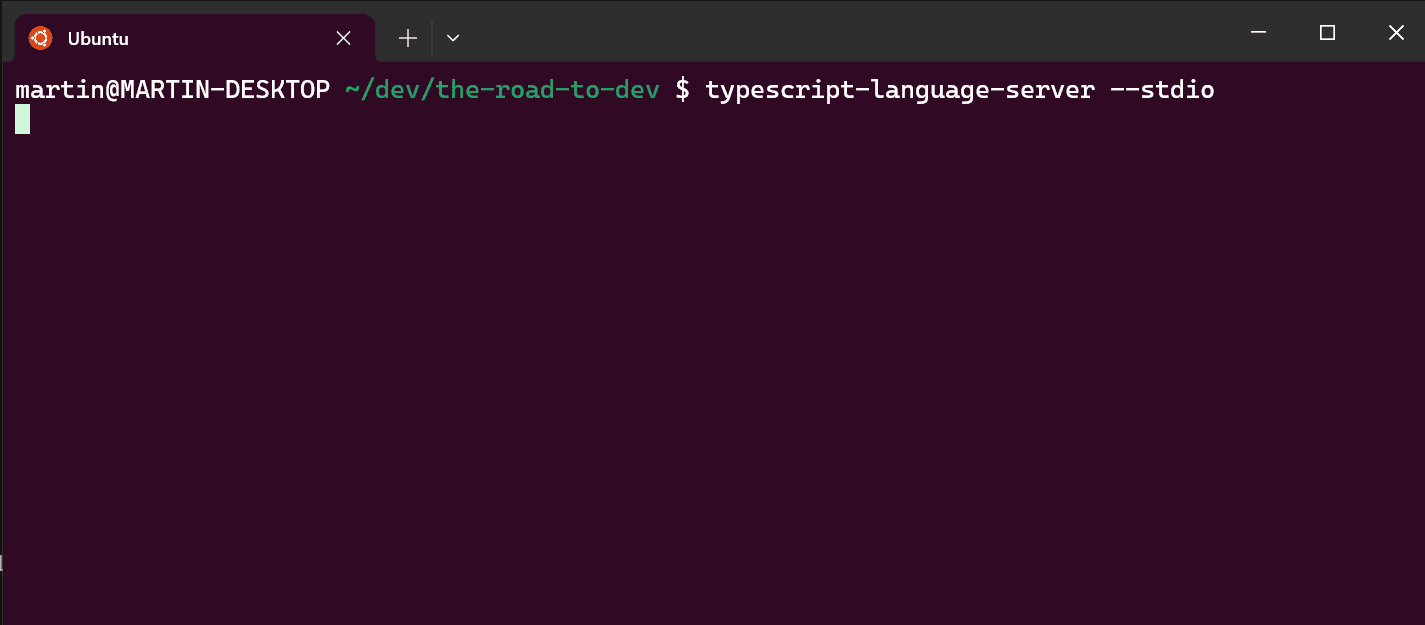
Note: It will seem like nothing is happening. You will need to keep this process running in the background.
4. Restart Claude Code
You will need to restart Claude Code for the changes to take effect.
5. Test that the TypeScript LSP plugin is working
5.1 Check that the plugin is Enabled
Use the /plugin command and then cycle to the "Installed" tab. The TypeScript LSP plugin should be listed as "Enabled".
[Enabled image]
5.2 Use Claude Code in a TypeScript project
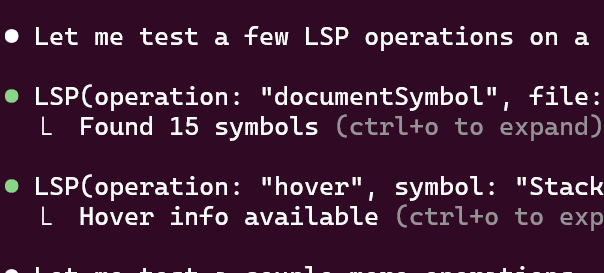
Now use Claude Code in a folder where there is a TypeScript file and ask it to use the TypeScript LSP plugin. You should see it use operations such as, but not limited to:
documentSymbolgoToDefinitionfindReferencesworkspaceSymbol
Lesson Complete!
Great job! You've finished this lesson. Ready to continue?